Do you have a project that you are looking for the perfect fonts to use? Deciding what fonts work well and complement each other can be a time consuming and difficult task. I am excited to share with you 6 different FREE fonts combinations for personal and demo use. All of these fonts can be installed on your computer to be used in any Cricut or Silhouette project. Not sure how to download fonts? Follow my step by step tutorial on How to Download and Install Fonts to Your Computer. Once these fonts have been installed onto your computer they can be used for your home decor and DIY Cricut projects in Cricut’s Design space. See my How to use FREE fonts in Cricut Design Space tutorial if you are unsure how to do that.
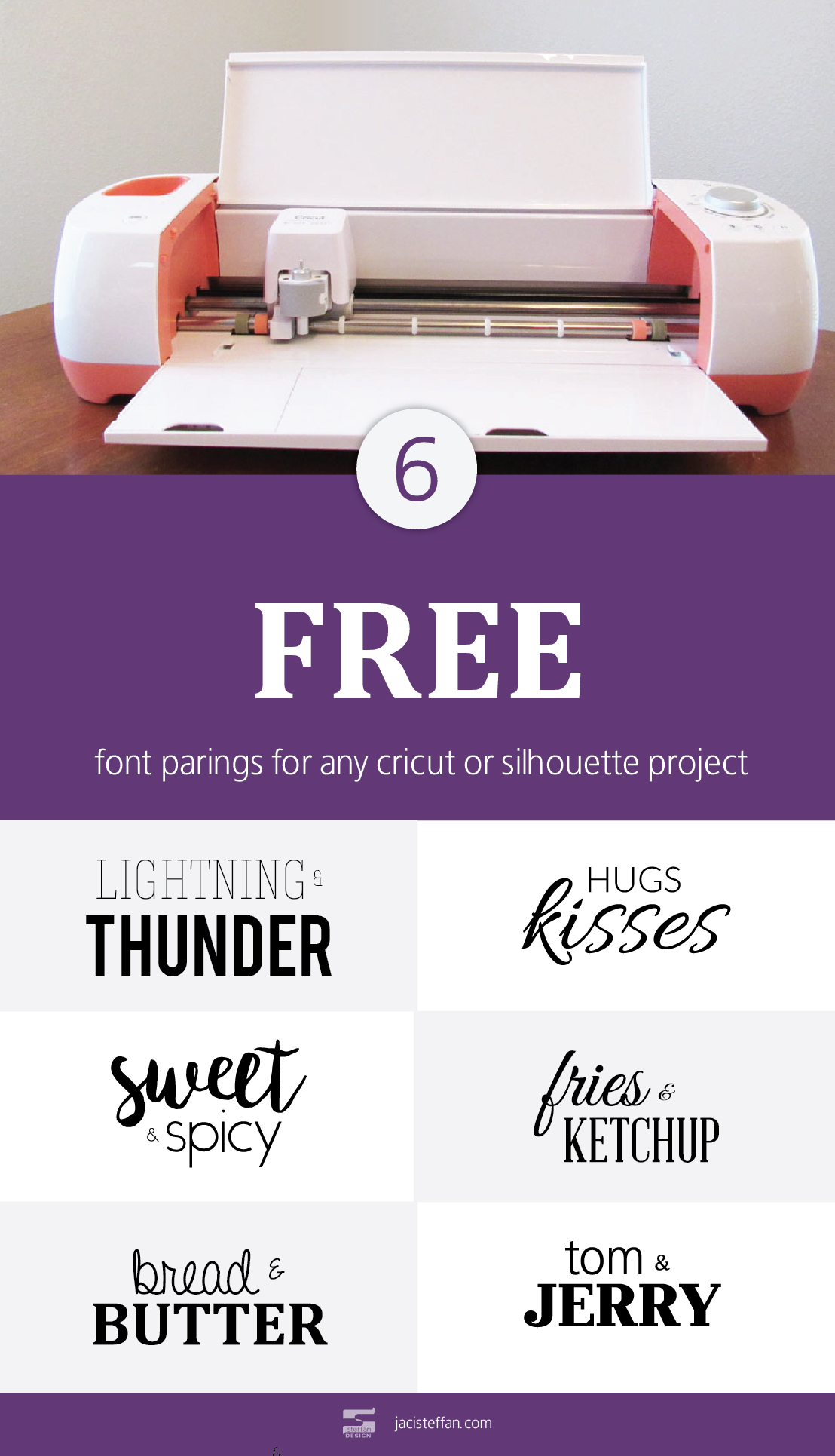
 

Lightning & Thunder  • Sweet & Spicy  • Bread & Butter  • Hugs & Kisses  • Fries & Ketchup • Tom & Jerry

These fonts are free for personal or demo use. If you plan on using them to create a project that you will be selling please make sure that the fonts you use are free for commercial use. If they are not please be sure to purchase the fonts on the designers respective sites. The fonts provided in this list are the property of their respective owner.

[adinserter block=”1″]

Tips for Combining Fonts

  1. Do opposites really attract? Well, they do when it comes to fonts! Combining script fonts with san-serif and serif fonts provide great contrast.
  2. Hierarchy is a very important part of design. A great way to create visual hierarchy is to pair a heavy weighted font with a light weighted font. This makes the heavy weighted and font pop out which creates visual hierarchy.
  3. Be careful combining similar fonts. Just because a couple fonts look similar it doesn’t ensure they will look good together. Avoid parring multiple san-serif fonts or multiple serif fonts together.
  4. Limit the number of fonts combined in a single design. Having a large variety of fonts in a single design can lead to visual confusion.

[adinserter block=”1″]

Successfully combining fonts is a matter of trial and error. Don’t feel like a failure after trying just a couple combinations. Like everything in life, practice is the best way to get better at combining fonts.

What are your favorite free fonts to combine together?

Recommended Posts
Did you know that you have access to thousands of free fonts for your home decor and DIY Cricut projects? Yep! Loads of FREE fonts for personal and commercial projects can be found online that can be used for your Cricut projects! This post contains affiliate links. If you click and make a purchase, I may receive a small commission, at absolutely no extra cost to you. Read my full Disclosure Policy here. My son needed a water bottle with his name on it for school. As a result for this project I will be making a vinyl decal of his name to put on his water bottle. The Contigo water bottle used on this project can be purchased on amazon. These are awesome water bottles for kids! They come with a straw but also work without it. They are easy to clean, durable and most importantly don’t leak! As a result we don’t go very many places with out it. The font that I will be using has already been installed on my computer. If you aren’t sure where to find free fonts or how to install fonts to your computer you can follow my How to Download and Install Fonts to Your Computer tutorial. Some designers allow their fonts to be used for personal and commercial use for free while others ask you pay a small fee for commercial use. It is different for each font so please make sure you follow each font and designers rules carefully. Step by Step Instructions: Use Installed Fonts in Cricut Design Space Once the font you will be using has been installed on your computer head over to Cricut’s Design Space. Step 1 Once logged in to Cricut’s Design Space click the New Project button.   Step 2 Click on the T (text button) in the panel on the left. Step 3 Type in the text you would like to use.   Step 4 Click the font drop down on the top bar tool panel.   Step 5 A large section with a list of fonts will appear. At the top you will see 3 options. All, System, and Cricut. Click on the word system and either search for the specific font or scroll down the list of fonts installed on your computer. For this decal I will be using the font Bebas.   Step 6 After clicking on the font you will be using the text will update. This area controls the font, font style, size, letter spacing, line space, alignment, and curve can be adjusted to your liking and project. Once all the text is formatted how you want it click the ‘Make It’ button in the top right hand corner. Step 7 Connect your Cricut to your computer and outlet. Select the right size of board on the left hand side and make sure that your material is placed in the same place as the design on the mat. Next, click on the ‘Continue’ bottom in the bottom right. Step 8 Finally, set the material dial on your Cricut machine. Then push the Cricut button on your machine and let the Cricut work it’s magic!     In conclusion, knowing how to install fonts to your computer and use them in Cricut’s design space opens up a whole new world of home decor and DIY Cricut projects! The sky is the limit so have fun! What are your favorite projects to make with your Cricut? Leave a comment below! [...] Read more...